TEST 007
Claude in Google Docs, Sheets and Slides: setup, skills and limits
Short answer
Claude for Google Workspace is a sidebar add-on that edits the file you have open and uses the skills on your Claude account. In the test, one prompt produced an 8-slide deck draft in 9 minutes 41 seconds, a Sheets dashboard took about three and a half minutes, and a 12-page Docs brief took under six, with up to nine approval cards per job. It needs a paid Claude plan and Chrome, Edge or Safari, and it cannot open or create other Drive files.
Anthropic announced Claude for Google Workspace on 6 October 2026. It is an add-on that puts Claude in a sidebar inside Google Docs, Sheets and Slides. It reads the file you have open and edits it in place. A day later, Claude was installed in a Google account and used to build a campaign brief in Docs, a dashboard in Sheets and an 8-slide deck in Slides, followed by a styling pass on all three.
This guide covers setup, the skills used, what worked, and where the sidebar stops. Anthropic's own guides are linked throughout.
What the test found
- In testing, one prompt produced an 8-slide deck draft in 9 minutes 41 seconds, built in two batches with about nine approval cards.
- A 12-page campaign brief in Docs took 5 minutes 47 seconds and one approval card. A Sheets dashboard took about three and a half minutes and two.
- Typing a slash in the sidebar lists the skills on your Claude account, including Anthropic's marketing skills.
- Styling worked in all three apps. Docs and Slides took gradient images, and Sheets used a colour scale for a true gradient.
- The add-on cannot open, create or copy other Drive files, and one operation can run six minutes.
- Claude wrote its own copy for slides the brief left blank, and said so.
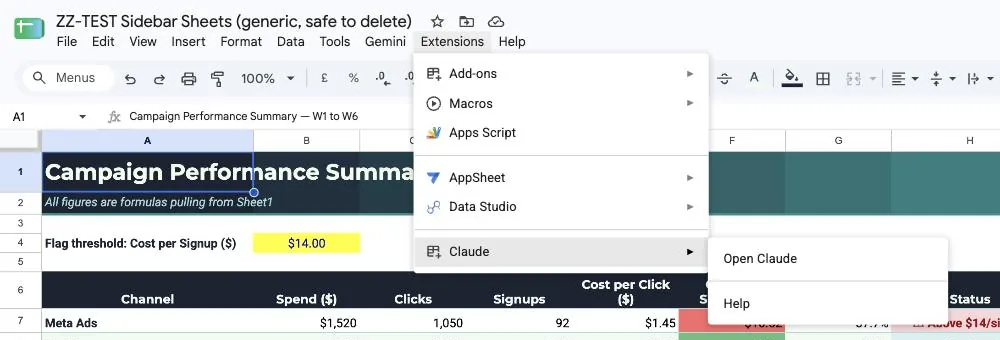
Extensions, then Claude, then Open Claude. The same path works in Docs, Sheets and Slides.
Two ways to use Claude with Google files
Anthropic ships two separate things, and the names blur together.
| The add-on sidebar | The connectors in Claude chat |
|---|---|
| Claude comes to the file you already have open. | You switch on the Google Docs, Sheets and Slides connectors inside Claude on the web or Claude Desktop. |
| One install covers Docs, Sheets and Slides. | According to Anthropic's guide, you paste a link or ask for a new Google doc, sheet or deck, and the file opens in a pane next to your chat. |
| Access to your Google files is limited to the file it is opened in. Attached files and connectors you turn on can add more content. | The guide says a generic request for a "doc" or "deck" that does not name Google creates a local file instead. |
Anthropic's own advice is to start from Claude when you need a new file or your work spans several files. Use the sidebar when you are already inside the file.
Set it up in about two minutes
- Open the Claude listing in the Google Workspace Marketplace and click Install.
- Pick the Google account you use for Docs, Sheets and Slides, then click Continue.
- Google shows a consent screen that lists the permissions. Read it and click Allow.
- Reload any file you already had open.
- In a Doc, Sheet or deck, open Extensions, then Claude, then Open Claude. Pressing Alt+/ (Option+/ on a Mac) and typing "Claude" also finds it.
- Sign in with your Claude account in the sidebar.
You need a paid Claude plan (Pro, Max, Team or Enterprise), a browser that is Chrome, Edge or Safari, and a Google account that is allowed to install Marketplace apps. Firefox is not supported in the beta.
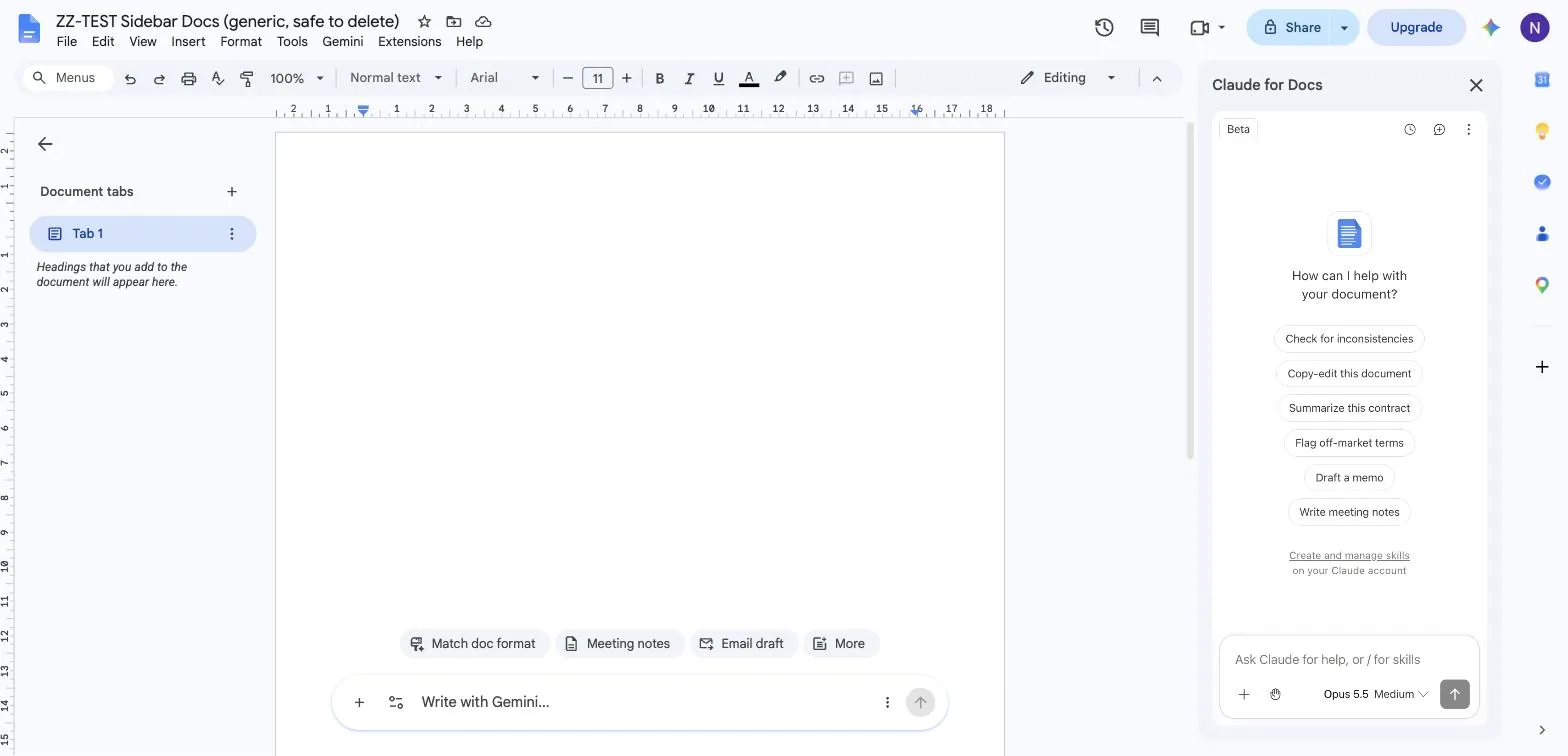
The sidebar on a blank Doc. The message box says "or / for skills", and the model picker sits at the bottom.
Anthropic's guide describes two permissions that matter. One lets Google show the sidebar. The other lets Claude view and manage the single file it is opened in. The Marketplace listing also shows your primary account email and basic profile information. Anthropic says the add-on does not ask for access to your wider Drive, Gmail, Calendar or contacts.
Stay safe before you start
The mode selector sits at the bottom of the sidebar, next to the model name. It has two settings.
Ask before edits is the default. Claude shows what it is about to do and waits for you to click Allow. Accept all edits lets ordinary content edits run without stopping. In the test, Accept all edits was chosen at the first permission prompt in Docs, and after that the Docs sidebar applied its edits without asking again. The Sheets and Slides sidebars started on Ask before edits.
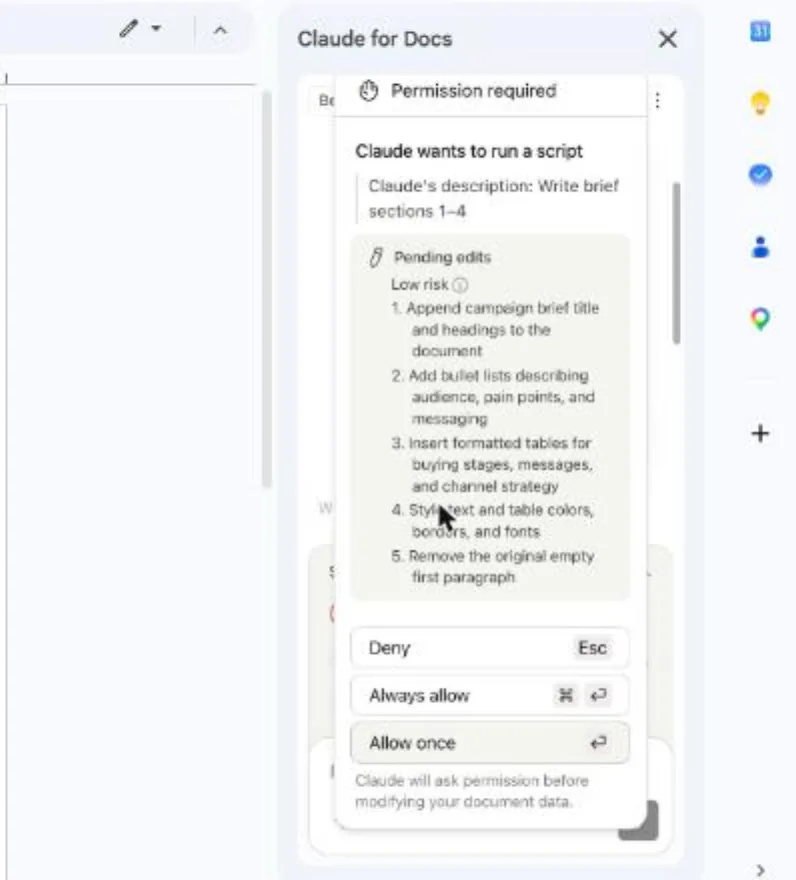
A permission card in Ask before edits mode. It lists the edits in plain language before anything changes.
Some actions stop for approval in both modes: inserting an image from a web address, adding a link, and removing anyone's access. They carry a Security review label and have no "Always allow" button. Claude also cannot share the file, change who owns it, create menus or scheduled automations, or load arbitrary web pages.
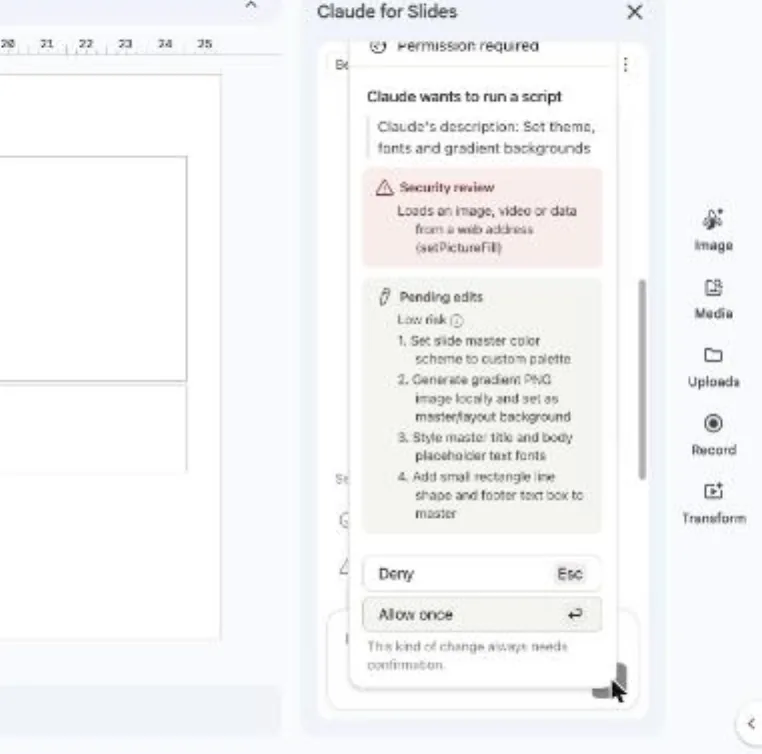
A Security review card from the Slides run. There is no Always allow button, and the card says this kind of change always needs confirmation.
On data, Anthropic says the add-on reads the open file and your selection, plus any files you attach and any connectors you turn on. It says this content is not used to train its models and that inputs and outputs are deleted within 30 days, with exceptions listed on its retention page. Chat history stays in your own browser, saved per file. Every edit shows in the file's version history under your name, so Undo and version history are your way back.
Advice: start in Ask before edits, use fake data for the first runs, and keep the sidebar open until Claude finishes. Closing it stops the task.
Skills: what they are and how to call them
A skill is a saved set of instructions Claude follows for one kind of job. The sidebar uses the skills on your Claude account, which is why the same ones show up in Docs, Sheets and Slides.
To call one, type a slash in the message box. A list opens, and typing narrows it. Typing /marketing or /theme filters the list. Pick an entry, then write the request after it.
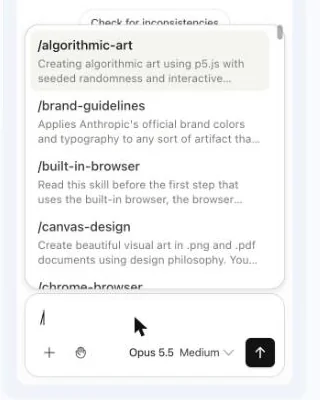
Type a slash and the account's skills list opens.
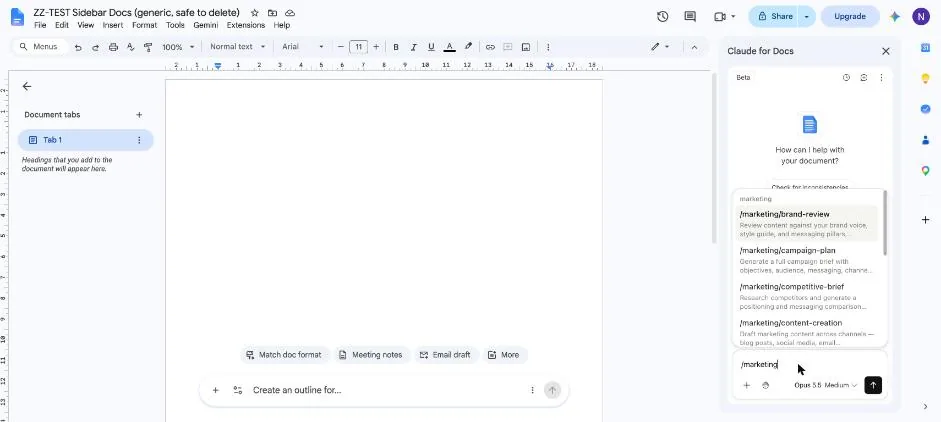
Typing /marketing filters the list to Anthropic's marketing skills.
The list had three kinds of entries. There were example skills, such as theme-factory, brand-guidelines, canvas-design and algorithmic-art. There were skills from Anthropic's Knowledge Work Plugins, which show as /marketing/brand-review and so on. And each app suggests its own starters. Sheets offered /audit-xls, /clean-data-xls, /dcf-model and /comps-analysis.
The marketing skills folder in Anthropic's repository holds eight skills: brand-review, campaign-plan, competitive-brief, content-creation, draft-content, email-sequence, performance-report and seo-audit. The test used three of them, plus theme-factory. From the skill files and the picker descriptions:
- brand-review checks content against your voice, style guide and messaging, flags problems by severity with before and after fixes, and always checks for unsupported claims and missing disclaimers.
- campaign-plan writes a ten-part brief: overview, audience, messages, channels, content calendar, content pieces, metrics, budget, risks and next steps.
- performance-report builds a marketing report with key metrics and trends.
- theme-factory applies a ready-made colour and font theme to slides, docs and similar files.
Skills are plain files. Anthropic's repository says you can edit them to match your own tools and terms, and you can manage the ones on your account from the link at the bottom of the sidebar or at claude.com/skills. After a run, the message box suggests /skillify to save the process as a skill.
One habit paid off right away: give the skill every input up front. The campaign-plan file tells Claude to ask for the goal, audience and timeline if any is missing, and treats budget as optional. Supplying all four, plus "do not ask me questions; list your assumptions at the end," sent Claude straight to work, and it listed its assumptions at the end of the document, including a 14-day trial with no credit card and an email list of about 3,000 people.
Docs: a campaign brief, then a review, then a restyle
First prompt, with the campaign-plan skill: goal of 500 free-trial signups in six weeks, audience of freelance designers, a $4,000 budget, and a request for the full brief with the content calendar as a table.
Claude planned for about three and a half minutes, then asked once for permission to write. The finished document ran 12 pages. It had a title, a subtitle, ten numbered sections and a filled outline pane. The content calendar was a styled table with a dark header row and banded rows. The whole run took 5 minutes 47 seconds and one approval card.
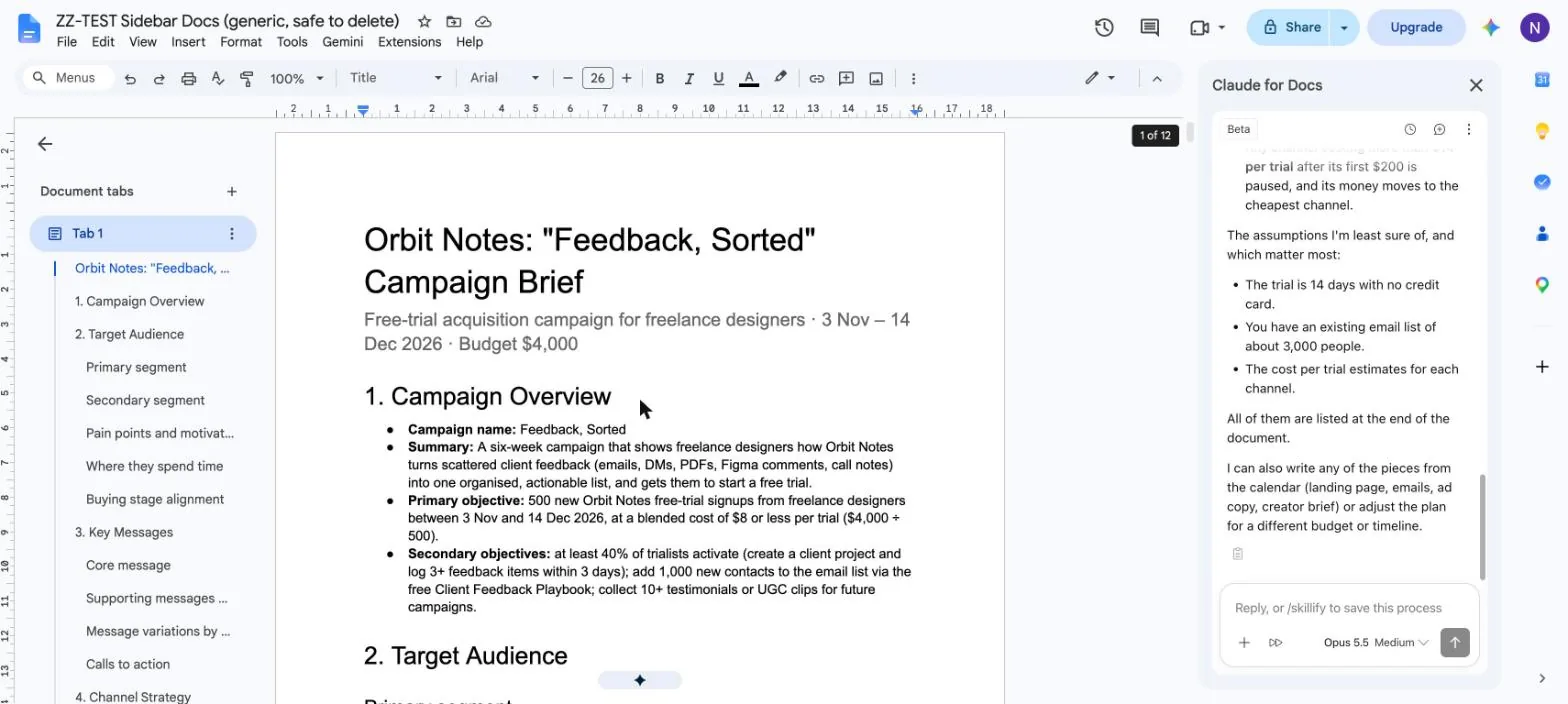
The brief after the first prompt: ten numbered sections, listed in the outline pane.
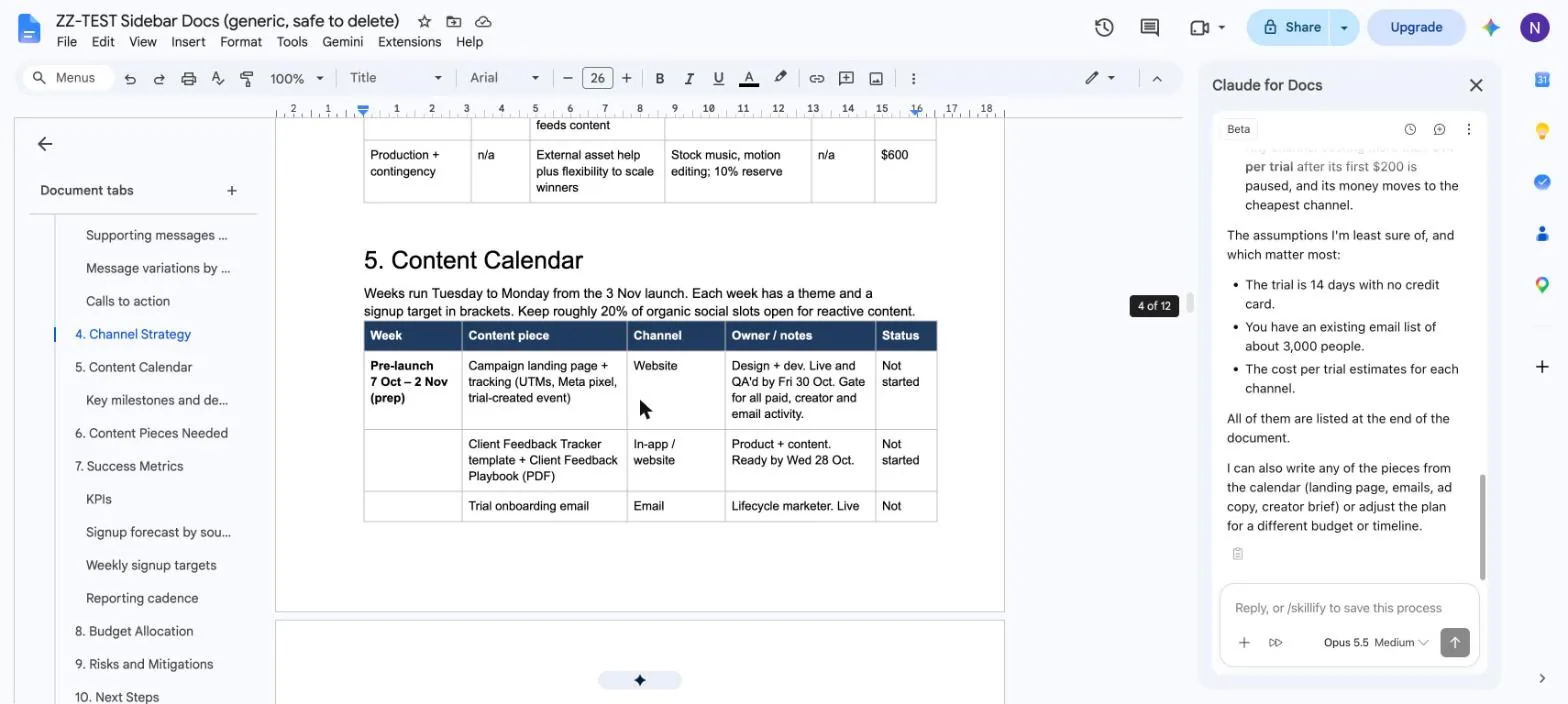
The content calendar came out as a styled table.
Second prompt, with brand-review: check the brief for unsupported claims and vague wording, and propose each fix as a suggestion instead of editing directly. This is how Anthropic's guide says to get suggestion cards in Docs. Claude returned five cards in about two minutes with no permission prompts. Each card showed the old text struck through, the new text underneath, and a reasoning drop-down. One caught the phrase "biggest reach among freelance designers" and swapped it for "large design audience on Instagram (to be sized in Ads Manager)". Claude said it had not changed the document, and accepting a card is one click on its tick.
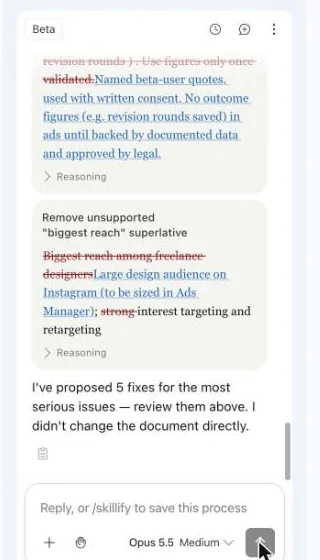
Suggestion cards: old text struck through, new text underneath, a reasoning drop-down on each.
Third prompt, with theme-factory: give the brief a deep blue and teal look, add a gradient banner image above the title, and turn the primary objective into a callout. That took about five and a half minutes and one approval. The result had a navy-to-teal banner image, teal headings and a shaded callout box. Claude listed what it could not do. Docs cannot stretch an image to the page edge, so the banner sits between the margins. Docs has no callout element, so the callout is a one-cell table styled to look like one. And it swapped the theme fonts for Montserrat and Open Sans.
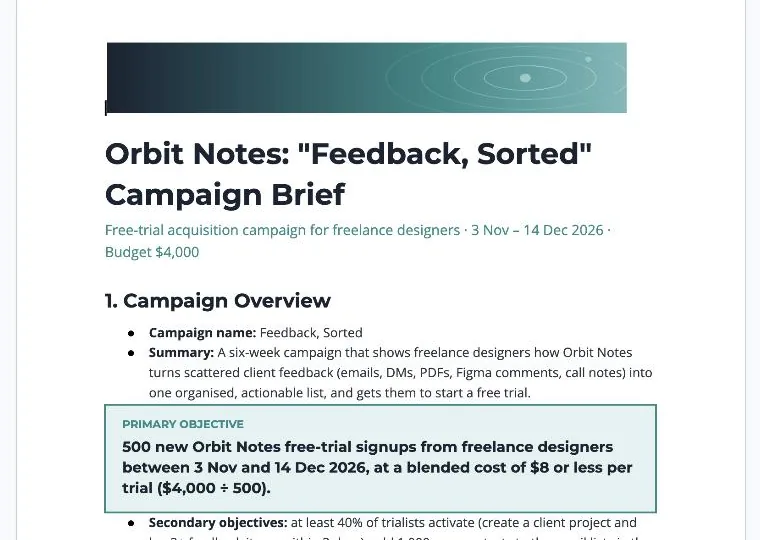
After the theme-factory pass: banner image, teal subtitle and a callout built from a one-cell table.
Sheets: a dashboard in two prompts
The prompt asked for fake data across six weeks and four channels, formulas for cost per click and cost per signup, a Summary tab with totals by channel, a flag above $14 per signup, and one native chart. The performance-report skill handled it.
It took about three and a half minutes and two approval cards, one per script. Sheet1 got a title, a header row and the data. The Summary tab got totals built from formulas, a status column with red and green flags, a signups-by-week table and a stacked column chart. In the fake data, total spend came to $4,030 for 486 signups. Meta Ads was flagged at $16.52 per signup, and the other three channels came in under the line. Claude said it re-read the totals after building them.
The styling pass with theme-factory took about three minutes and two more approvals. Claude picked a theme called Ocean Depths and made these changes:
- A true colour-scale gradient on the cost-per-signup column, running green to orange to red.
- A dark teal banner across the title rows, made from stepped fills in each column.
- A sparkline for each channel, plus a mini column chart on the total row.
- A restyled chart with the theme palette and a value label on each segment.
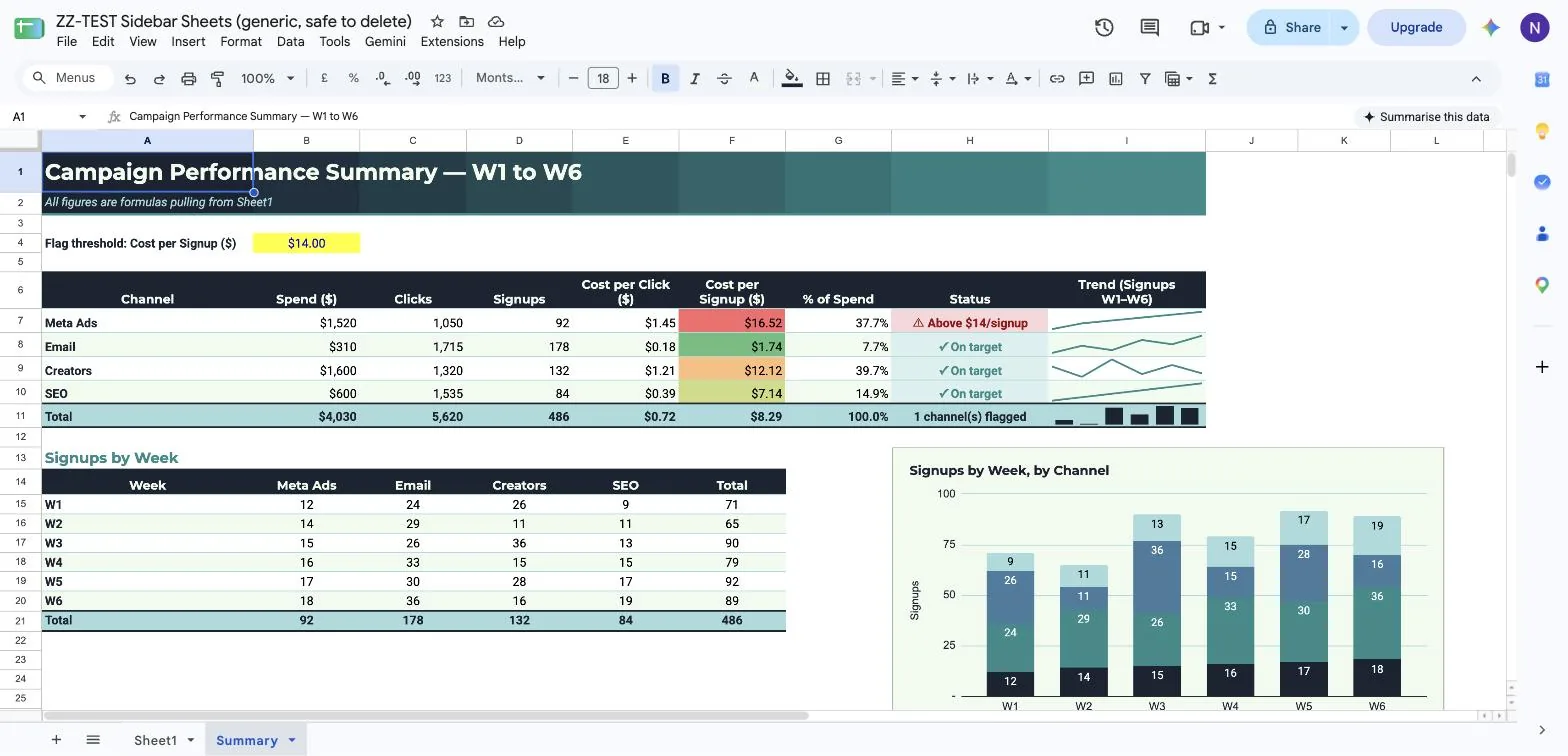
The Summary tab after both prompts. All figures are fake data.
Slides: an 8-slide deck in one prompt
This was the hardest job. The prompt gave Claude the facts and the slide list: title, the problem, the audience, the idea, channels and budget with a chart, a six-week plan, KPIs and next steps. It asked for a deep blue and teal theme, gradient backgrounds, big numbers and minimal text, and told Claude to say so if it could not do gradients or images.
Claude set a gradient image as the slide master background, built the slides in two batches, inserted icons, drew the budget chart, then ran an overlap pass that resized and moved text boxes. The run took 9 minutes 41 seconds and about nine approval cards. Two were Security review cards, both for gradient images that the card text said were generated locally. The rest covered icon inserts, a read-only step, the chart and layout fixes.
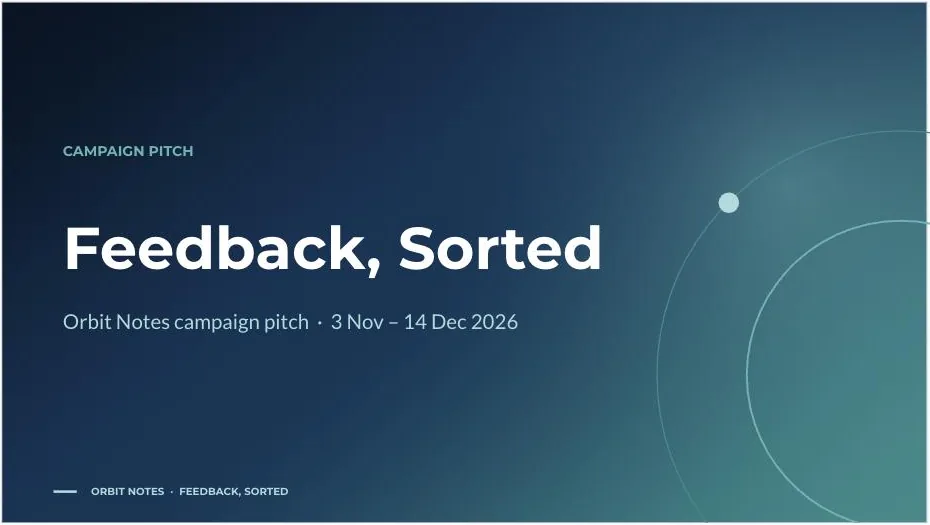
Slide 1. The gradient background is an image set on the slide master.
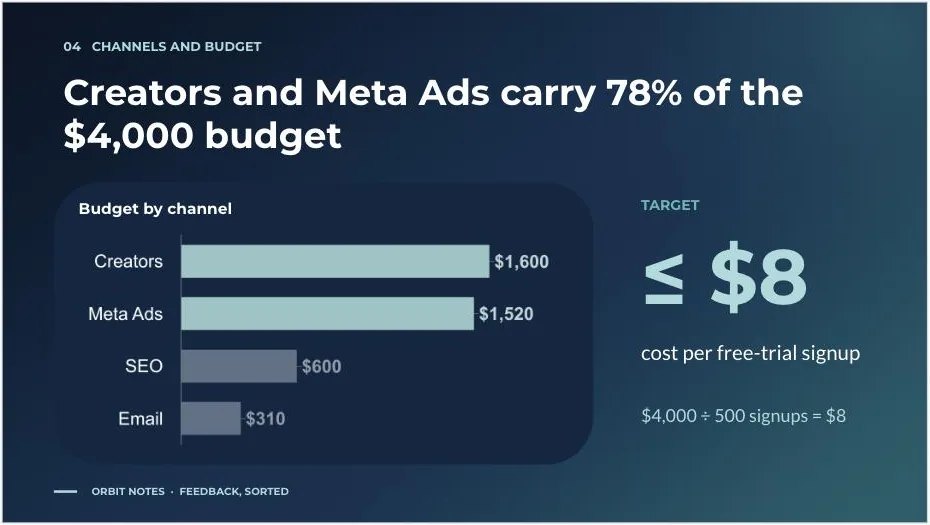
Slide 5. The chart sits on a solid navy card because chart images cannot be transparent.
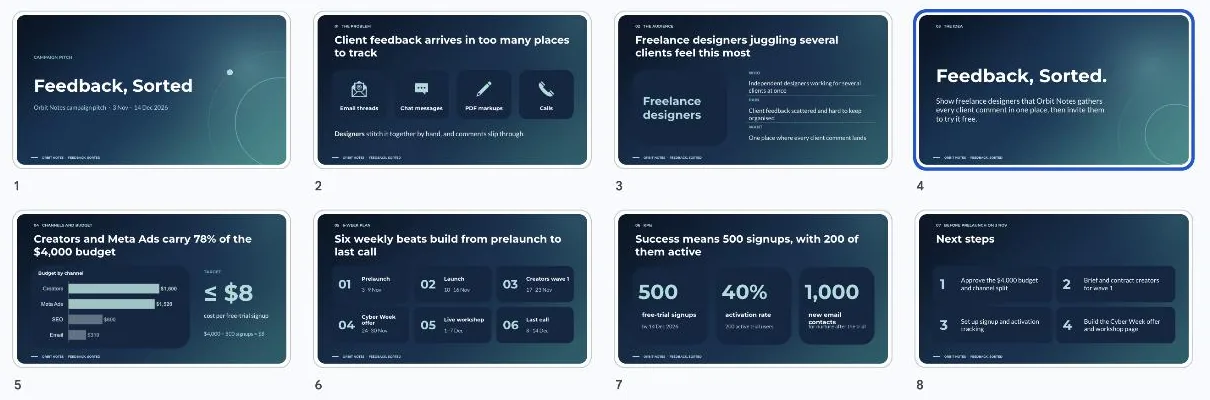
All eight slides, one design system, from a single prompt.
The finished deck had one look across all eight slides: a navy-to-teal gradient, icon tiles, a bar chart, a large "≤ $8" cost-per-signup target, six plan cards and a row of KPI numbers. The slide titles read like claims, such as "Creators and Meta Ads carry 78% of the $4,000 budget." That figure is correct: $1,600 plus $1,520 is $3,120, and $3,120 is 78% of $4,000.
Claude closed with a short list of things to check. It wrote the copy for slides 2, 3 and 8 itself because the brief had no wording for them. It swapped the theme font for Montserrat and Lato. And the chart sits on a solid navy card because chart images cannot be transparent.
Making it look good
The prompts asked for gradients and images in all three apps and told Claude to say plainly what it could not do.
- Sheets: a real gradient comes from conditional formatting colour scales. In the run, the banner gradient was approximated with stepped fills.
- Slides: gradients worked as generated images set as the master or slide background, and those steps raised Security review cards. Icons went in through an insert-icon step, and charts arrived as pictures.
- Docs: the banner is an image inserted from embedded data. Callouts are one-cell tables. Headings and table colours follow the theme.
Three tips from the run. Name the palette or mood and the file it should match. Say "keep the content and structure unchanged" on a styling pass. And end the prompt with "if you cannot do any of it, say so," because Claude listed its limits every time.
How hands-off is it?
| Job | Skill | Time | Approval cards |
|---|---|---|---|
| Docs campaign brief | campaign-plan | 5m 47s | 1 |
| Docs review as suggestions | brand-review | about 2m | 0 |
| Docs restyle | theme-factory | about 5.5m | 1 |
| Sheets dashboard | performance-report | about 3.5m | 2 |
| Sheets restyle | theme-factory | about 3m | 2 |
| Slides 8-slide deck | theme-factory | 9m 41s | about 9 |
That is about 30 minutes of run time and 15 approval cards for six jobs. A prompt like "Build me a full presentation on this topic and use these skills" produced a full deck in testing, with three conditions. You open the file first, because the sidebar cannot create files. The first approval card appeared after about two minutes in Sheets and Slides and about three and a half in Docs. And in Ask before edits mode you approve each script.
Anthropic says Accept all edits skips approval for ordinary content edits but still pauses for links, images from web addresses and access changes. The Slides run started in Ask before edits, and its icon inserts and gradient-image steps asked for approval. Check the mode selector before a long run.
What it can and cannot do
| Can do | Cannot do | |
|---|---|---|
| Docs | Draft and restructure long documents, build tables, restyle headings, propose edits as cards you accept one by one, insert a banner image | Read, reply to or resolve comments from the sidebar; accept or reject existing suggestions; create or reorder document tabs |
| Sheets | Build models and formulas, new tabs, summaries, flags, native charts, colour scales and sparklines | Read Connected Sheets tabs backed by BigQuery; create triggers, custom menus or scheduled refreshes |
| Slides | Build slides from your layouts and theme, restyle a deck, add icons, insert charts as images, check for overlaps | Make charts that update when numbers change; refresh linked charts; insert web images without approval each time |
| All three | Answer questions about the file with citations; use your account's skills and connectors; attach up to 20 files per message | Open, create or copy other Drive files from the sidebar (connectors can bring in other files); export a PDF; share the file, give anyone access or change ownership (removing access needs approval); run longer than six minutes per operation; keep working after you close the sidebar |
Also outside the beta today: third-party inference such as Amazon Bedrock or Google Vertex AI, zero data retention, and use with protected health information.
Tips that saved time
- Open a blank file first and name the app in your request.
- Call the skill with a slash, then paste every input it needs.
- Add "do not ask me questions; list your assumptions at the end" when you want one clean run.
- In Docs, ask for suggestions when you want to review each change.
- Split big jobs. Anthropic suggests about ten slides at a time because one operation can run six minutes.
- Read every number Claude invents. The numbers in the test were fake by design, and the copy Claude wrote itself for thin slides was generic.
- Use fake data until you trust the setup, and keep health records out of it.
- Layer skills: one to write, one to review, one to style.
Things to try next
- Run
/skillifyafter a prompt you like and save it as a skill for the next file. - Call the other marketing skills in Docs: draft-content, email-sequence, seo-audit, competitive-brief and content-creation.
- Turn on the Google connectors in Claude chat, then ask for "a Google Slides deck from these notes" and watch the file open beside the chat.
- Run the same job in Ask before edits and Accept all edits and compare the clicks.
- Add a brand skill of your own to your Claude account, call it before theme-factory, and check whether the colours and fonts match.
- Try the Sheets starters,
/audit-xlsand/clean-data-xls, on a messy sheet. - Put the same prompt to Gemini's bar and the Claude sidebar side by side in one Doc.
How the test ran
The test used fake data and a made-up product, Orbit Notes, a notes app for freelance designers. Nothing private went into any file. Claude drove the sidebar while start times, approval clicks and results were logged. The model picker showed Opus 5.5 at Medium effort. The test ran on 7 October 2026. This is a beta, so check the official guides if something has changed.
Questions
Do I need a paid Claude plan?
Yes. Anthropic lists the add-on as a beta for Pro, Max, Team and Enterprise plans.
Can Claude see my other Drive files?
Not by default. Google limits the add-on to the file you opened it in, plus anything you attach. If you connect the Google Drive connector, Claude can use that to see more.
Does it work next to Gemini?
In the test account, Docs showed Google's Gemini bar and the Claude sidebar together.
Can I undo what Claude did?
Yes. Use Undo, or restore an earlier copy from version history.
Can my teammates see my chat with Claude?
No. The chat stays in your browser. They see Claude's edits in the file, attributed to you.
Does it work in Firefox?
No, not in the beta.
Which model does it use?
The model picker offers the models your plan includes. The test used Opus 5.5 at Medium effort.
Sources
- Claude now works with Google Docs, Sheets and Slides (Anthropic, 6 October 2026)
- Claude for Google Workspace (Anthropic)
- Use Claude in Google Docs, Sheets and Slides (Claude Help Center)
- Use Google Workspace connectors (Claude Help Center)
- Use plugins in Claude (Claude Help Center)
- Knowledge Work Plugins (Anthropic on GitHub)
- Marketing skills folder (Anthropic on GitHub)
- Claude in the Google Workspace Marketplace